> ## Documentation Index
> Fetch the complete documentation index at: https://docs-staging-fix-nav-assets.mintlify.site/llms.txt
> Use this file to discover all available pages before exploring further.

> Learn how to configure an update policy form using Forms for Actions for users to review and accept new terms of service or consent updates.

# Use Cases: Configure an update policy form using Forms

<Card title="Before you start">
  1. Create a [Machine-to-Machine Application](/docs/get-started/auth0-overview/create-applications/machine-to-machine-apps) with the following scopes enabled:

  * `read:users`
  * `update:users`
  * `create:users`
  * `read:users_app_metadata`
  * `update:users_app_metadata`
  * `create:users_app_metadata`

  2. Add a [Vault connection](/docs/customize/forms/vault) using the M2M application credentials.
</Card>

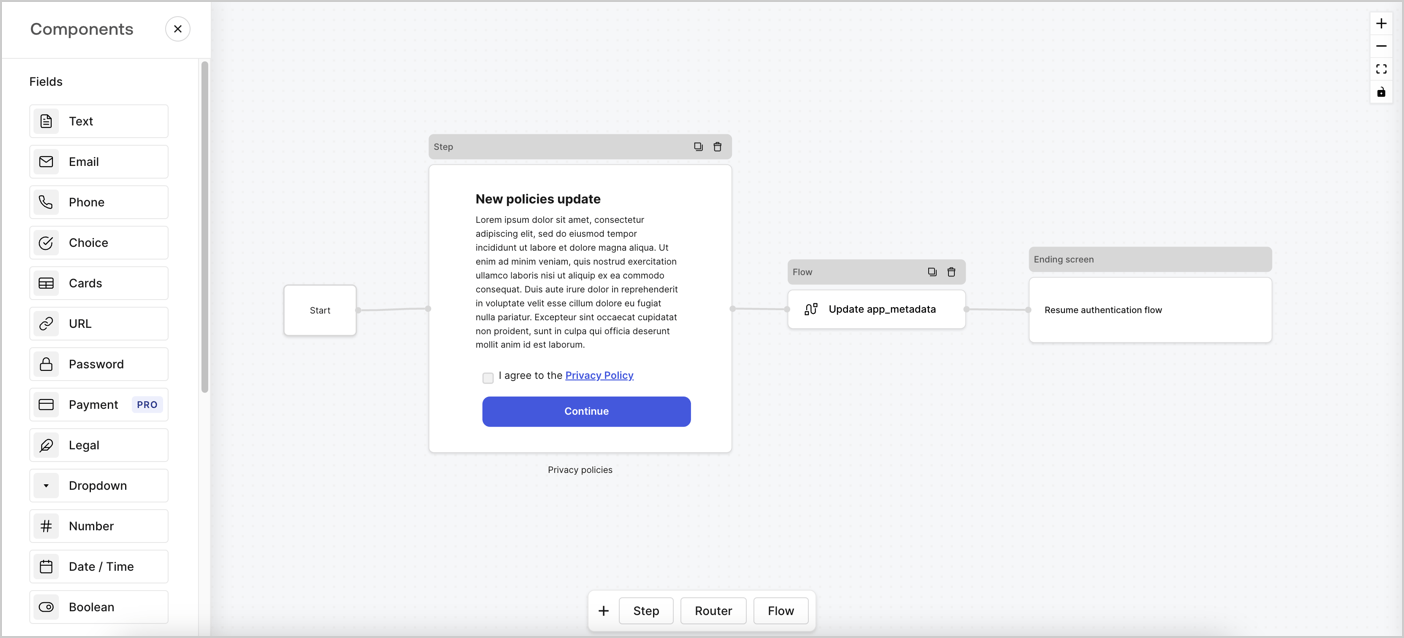
Forms for Actions allows you to create custom privacy policies flows and store the consent under the `app_metadata` object.
<Frame>
  <img src="https://mintcdn.com/docs-staging-fix-nav-assets/AIJIrBLa7KP3QxCn/docs/images/cdy7uua7fh8z/6i68dMvHDTijfRmSgN1x8Q/ad900e7d4c0fb34645921435472b8684/privavy-policy-form.png?fit=max&auto=format&n=AIJIrBLa7KP3QxCn&q=85&s=402d0345baa2a0acac4545dd4c6d587d" alt="Dashboard > Actions > Forms > Privacy policy use case" data-og-width="1404" width="1404" data-og-height="638" height="638" data-path="docs/images/cdy7uua7fh8z/6i68dMvHDTijfRmSgN1x8Q/ad900e7d4c0fb34645921435472b8684/privavy-policy-form.png" data-optimize="true" data-opv="3" srcset="https://mintcdn.com/docs-staging-fix-nav-assets/AIJIrBLa7KP3QxCn/docs/images/cdy7uua7fh8z/6i68dMvHDTijfRmSgN1x8Q/ad900e7d4c0fb34645921435472b8684/privavy-policy-form.png?w=280&fit=max&auto=format&n=AIJIrBLa7KP3QxCn&q=85&s=5c91257c8c485ebac8046c9a5cc319db 280w, https://mintcdn.com/docs-staging-fix-nav-assets/AIJIrBLa7KP3QxCn/docs/images/cdy7uua7fh8z/6i68dMvHDTijfRmSgN1x8Q/ad900e7d4c0fb34645921435472b8684/privavy-policy-form.png?w=560&fit=max&auto=format&n=AIJIrBLa7KP3QxCn&q=85&s=1fcdc8c754676e2ad00ea00f0a92d3e1 560w, https://mintcdn.com/docs-staging-fix-nav-assets/AIJIrBLa7KP3QxCn/docs/images/cdy7uua7fh8z/6i68dMvHDTijfRmSgN1x8Q/ad900e7d4c0fb34645921435472b8684/privavy-policy-form.png?w=840&fit=max&auto=format&n=AIJIrBLa7KP3QxCn&q=85&s=970b0e44707dd008415fadbb73a2476b 840w, https://mintcdn.com/docs-staging-fix-nav-assets/AIJIrBLa7KP3QxCn/docs/images/cdy7uua7fh8z/6i68dMvHDTijfRmSgN1x8Q/ad900e7d4c0fb34645921435472b8684/privavy-policy-form.png?w=1100&fit=max&auto=format&n=AIJIrBLa7KP3QxCn&q=85&s=2efa8f0bd6208487e0f0e0be58913ae4 1100w, https://mintcdn.com/docs-staging-fix-nav-assets/AIJIrBLa7KP3QxCn/docs/images/cdy7uua7fh8z/6i68dMvHDTijfRmSgN1x8Q/ad900e7d4c0fb34645921435472b8684/privavy-policy-form.png?w=1650&fit=max&auto=format&n=AIJIrBLa7KP3QxCn&q=85&s=c8afcda59f1cd5b498e5669c52157949 1650w, https://mintcdn.com/docs-staging-fix-nav-assets/AIJIrBLa7KP3QxCn/docs/images/cdy7uua7fh8z/6i68dMvHDTijfRmSgN1x8Q/ad900e7d4c0fb34645921435472b8684/privavy-policy-form.png?w=2500&fit=max&auto=format&n=AIJIrBLa7KP3QxCn&q=85&s=3bf0cac746d58cb34d7a96b1b6084899 2500w" />
</Frame>

The sections below outline how you can create an Update Policy form using nodes and flows, along with steps for adding your form to a [Post Login](/docs/customize/actions/explore-triggers/signup-and-login-triggers/login-trigger) Action.

## Create a form from scratch

Follow these steps to create a form to gather information:

1. Open the Form editor by selecting **Auth0 Dashboard > Actions > Forms.**
2. Select **Create Form** > **Start from scratch**.

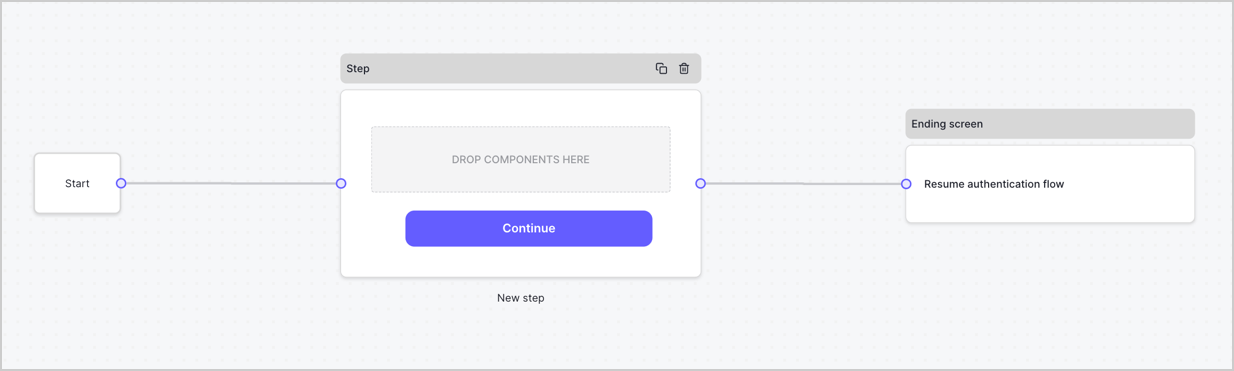
By default, a new form contains a Start node, a Step node, and an Ending screen node.
<Frame>
  <img src="https://mintcdn.com/docs-staging-fix-nav-assets/Xhgiiz4oHp4tMczX/docs/images/cdy7uua7fh8z/2TZ9jSjgEcARFpULI6hz4R/a4319a1bd482f2ee5cc23100fdb2f42c/New-form-Forms-for-action-use-case.png?fit=max&auto=format&n=Xhgiiz4oHp4tMczX&q=85&s=9bd5bdee7734003373757b99561a3917" alt="Dashboard > Forms > Use Cases > Form" data-og-width="1234" width="1234" data-og-height="371" height="371" data-path="docs/images/cdy7uua7fh8z/2TZ9jSjgEcARFpULI6hz4R/a4319a1bd482f2ee5cc23100fdb2f42c/New-form-Forms-for-action-use-case.png" data-optimize="true" data-opv="3" srcset="https://mintcdn.com/docs-staging-fix-nav-assets/Xhgiiz4oHp4tMczX/docs/images/cdy7uua7fh8z/2TZ9jSjgEcARFpULI6hz4R/a4319a1bd482f2ee5cc23100fdb2f42c/New-form-Forms-for-action-use-case.png?w=280&fit=max&auto=format&n=Xhgiiz4oHp4tMczX&q=85&s=0e6eb67d24f1c3c516c00fb4b75dd047 280w, https://mintcdn.com/docs-staging-fix-nav-assets/Xhgiiz4oHp4tMczX/docs/images/cdy7uua7fh8z/2TZ9jSjgEcARFpULI6hz4R/a4319a1bd482f2ee5cc23100fdb2f42c/New-form-Forms-for-action-use-case.png?w=560&fit=max&auto=format&n=Xhgiiz4oHp4tMczX&q=85&s=3dcabdb574db1cc2c2256d946200a059 560w, https://mintcdn.com/docs-staging-fix-nav-assets/Xhgiiz4oHp4tMczX/docs/images/cdy7uua7fh8z/2TZ9jSjgEcARFpULI6hz4R/a4319a1bd482f2ee5cc23100fdb2f42c/New-form-Forms-for-action-use-case.png?w=840&fit=max&auto=format&n=Xhgiiz4oHp4tMczX&q=85&s=91b0964371fa35ab279ec8c88ddac399 840w, https://mintcdn.com/docs-staging-fix-nav-assets/Xhgiiz4oHp4tMczX/docs/images/cdy7uua7fh8z/2TZ9jSjgEcARFpULI6hz4R/a4319a1bd482f2ee5cc23100fdb2f42c/New-form-Forms-for-action-use-case.png?w=1100&fit=max&auto=format&n=Xhgiiz4oHp4tMczX&q=85&s=3d16095eaa7f89cf84d585d6d14afdf2 1100w, https://mintcdn.com/docs-staging-fix-nav-assets/Xhgiiz4oHp4tMczX/docs/images/cdy7uua7fh8z/2TZ9jSjgEcARFpULI6hz4R/a4319a1bd482f2ee5cc23100fdb2f42c/New-form-Forms-for-action-use-case.png?w=1650&fit=max&auto=format&n=Xhgiiz4oHp4tMczX&q=85&s=15a820bd45f13e3c1e7ed083cc755357 1650w, https://mintcdn.com/docs-staging-fix-nav-assets/Xhgiiz4oHp4tMczX/docs/images/cdy7uua7fh8z/2TZ9jSjgEcARFpULI6hz4R/a4319a1bd482f2ee5cc23100fdb2f42c/New-form-Forms-for-action-use-case.png?w=2500&fit=max&auto=format&n=Xhgiiz4oHp4tMczX&q=85&s=a3258d2a63df480b9efd9cb847ec8c89 2500w" />
</Frame>

### Configure the Step node

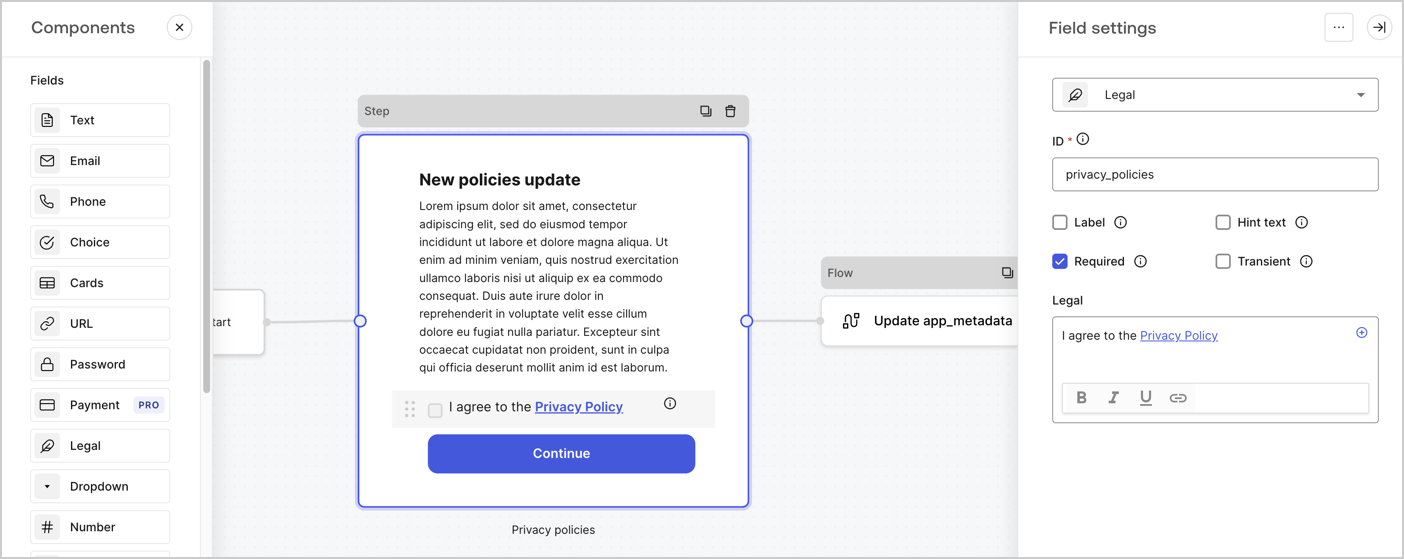
The Step node is the graphical interface visible to users. Add [Fields](/docs/customize/forms/nodes-and-components) to the Step node to collect the new agreement acceptance value by following these steps:

1. Drag a **Rich text** field from the **Components menu** into the **Step** node.

   * **Rich text**: Enter a description of your privacy policies updates.
   * Select **Save**.
2. Drag a **Legal** field into the **Step** node.

   * **ID**: Enter `privacy_policies`.
   * **Required**: Enable the checkbox.
   * **Legal**: Enter `I agree to the Privacy Policy`.
   * Select **Save**.
3. Select **Publish** to save.
<Frame>
  <img src="https://mintcdn.com/docs-staging-fix-nav-assets/VFbxUZRJlYhU7OrY/docs/images/cdy7uua7fh8z/59zFFjQjAnjogkc2QGIqqJ/0ad66b1b636544122aa4e65968b76c2c/privacy-policy-step-node.png?fit=max&auto=format&n=VFbxUZRJlYhU7OrY&q=85&s=a8c71230da6a4639a0e13cd35bde6de9" alt="Dashboard > Actions > Forms > Use case privacy policy step node" data-og-width="1404" width="1404" data-og-height="559" height="559" data-path="docs/images/cdy7uua7fh8z/59zFFjQjAnjogkc2QGIqqJ/0ad66b1b636544122aa4e65968b76c2c/privacy-policy-step-node.png" data-optimize="true" data-opv="3" srcset="https://mintcdn.com/docs-staging-fix-nav-assets/VFbxUZRJlYhU7OrY/docs/images/cdy7uua7fh8z/59zFFjQjAnjogkc2QGIqqJ/0ad66b1b636544122aa4e65968b76c2c/privacy-policy-step-node.png?w=280&fit=max&auto=format&n=VFbxUZRJlYhU7OrY&q=85&s=cc4ecb8aa127aca3a31b8591710559f2 280w, https://mintcdn.com/docs-staging-fix-nav-assets/VFbxUZRJlYhU7OrY/docs/images/cdy7uua7fh8z/59zFFjQjAnjogkc2QGIqqJ/0ad66b1b636544122aa4e65968b76c2c/privacy-policy-step-node.png?w=560&fit=max&auto=format&n=VFbxUZRJlYhU7OrY&q=85&s=3f96f858b85e750d2c5a9cff266be9dc 560w, https://mintcdn.com/docs-staging-fix-nav-assets/VFbxUZRJlYhU7OrY/docs/images/cdy7uua7fh8z/59zFFjQjAnjogkc2QGIqqJ/0ad66b1b636544122aa4e65968b76c2c/privacy-policy-step-node.png?w=840&fit=max&auto=format&n=VFbxUZRJlYhU7OrY&q=85&s=2787b988ec94e503c5ac9780b9fcb502 840w, https://mintcdn.com/docs-staging-fix-nav-assets/VFbxUZRJlYhU7OrY/docs/images/cdy7uua7fh8z/59zFFjQjAnjogkc2QGIqqJ/0ad66b1b636544122aa4e65968b76c2c/privacy-policy-step-node.png?w=1100&fit=max&auto=format&n=VFbxUZRJlYhU7OrY&q=85&s=6313e2bee474b52471141c42ac72052e 1100w, https://mintcdn.com/docs-staging-fix-nav-assets/VFbxUZRJlYhU7OrY/docs/images/cdy7uua7fh8z/59zFFjQjAnjogkc2QGIqqJ/0ad66b1b636544122aa4e65968b76c2c/privacy-policy-step-node.png?w=1650&fit=max&auto=format&n=VFbxUZRJlYhU7OrY&q=85&s=8fb649820d4f5e2666f403a6edc45703 1650w, https://mintcdn.com/docs-staging-fix-nav-assets/VFbxUZRJlYhU7OrY/docs/images/cdy7uua7fh8z/59zFFjQjAnjogkc2QGIqqJ/0ad66b1b636544122aa4e65968b76c2c/privacy-policy-step-node.png?w=2500&fit=max&auto=format&n=VFbxUZRJlYhU7OrY&q=85&s=4ecae54a7315198b8f94607fdfb4b775 2500w" />
</Frame>

### Configure the Flow node

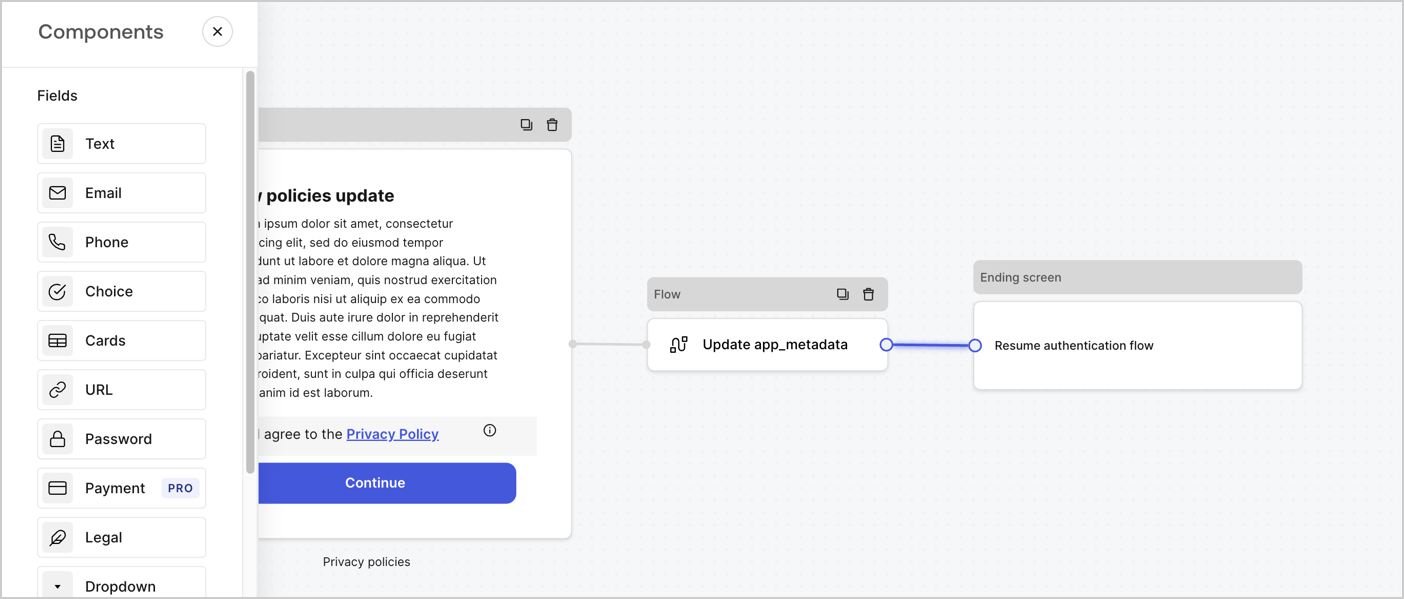
Add a **Flow** node after the **Step** node to update the `app_metadata` and resume the authentication flow by following these steps:

1. Select **Flow** from the bottom of the Form editor.
2. Remove the existing link between the **Step** and **Ending Screen** nodes.
3. Select the new **Flow** > **Click to add a flow** > **Create a new flow.**

   * Enter `Update app_metadata` in the **Name** field.
   * Select **Create**.
   * Select **Save**.
4. Link the **Flow** node to the **Step** and **Ending Screen** nodes as pictured below.
5. Select **Publish** to save.
<Frame>
  <img src="https://mintcdn.com/docs-staging-fix-nav-assets/AIJIrBLa7KP3QxCn/docs/images/cdy7uua7fh8z/6YIkzm7SrpM9LW76AXuRzh/353c518fe82bbaa440836da1d83596d6/link-policies.png?fit=max&auto=format&n=AIJIrBLa7KP3QxCn&q=85&s=d370b2132e87ce91efc4e6ccb0c93b82" alt="Dashboard > Actions > Forms > Form" data-og-width="1404" width="1404" data-og-height="599" height="599" data-path="docs/images/cdy7uua7fh8z/6YIkzm7SrpM9LW76AXuRzh/353c518fe82bbaa440836da1d83596d6/link-policies.png" data-optimize="true" data-opv="3" srcset="https://mintcdn.com/docs-staging-fix-nav-assets/AIJIrBLa7KP3QxCn/docs/images/cdy7uua7fh8z/6YIkzm7SrpM9LW76AXuRzh/353c518fe82bbaa440836da1d83596d6/link-policies.png?w=280&fit=max&auto=format&n=AIJIrBLa7KP3QxCn&q=85&s=179b901113b0221c27bb26f90b4f7fb4 280w, https://mintcdn.com/docs-staging-fix-nav-assets/AIJIrBLa7KP3QxCn/docs/images/cdy7uua7fh8z/6YIkzm7SrpM9LW76AXuRzh/353c518fe82bbaa440836da1d83596d6/link-policies.png?w=560&fit=max&auto=format&n=AIJIrBLa7KP3QxCn&q=85&s=1e0aaa24a5c3388ee3c856d14c284c2c 560w, https://mintcdn.com/docs-staging-fix-nav-assets/AIJIrBLa7KP3QxCn/docs/images/cdy7uua7fh8z/6YIkzm7SrpM9LW76AXuRzh/353c518fe82bbaa440836da1d83596d6/link-policies.png?w=840&fit=max&auto=format&n=AIJIrBLa7KP3QxCn&q=85&s=9a0467638c2cf363070896a9fecb80c9 840w, https://mintcdn.com/docs-staging-fix-nav-assets/AIJIrBLa7KP3QxCn/docs/images/cdy7uua7fh8z/6YIkzm7SrpM9LW76AXuRzh/353c518fe82bbaa440836da1d83596d6/link-policies.png?w=1100&fit=max&auto=format&n=AIJIrBLa7KP3QxCn&q=85&s=af5b4835907e5728d412940ae66e4965 1100w, https://mintcdn.com/docs-staging-fix-nav-assets/AIJIrBLa7KP3QxCn/docs/images/cdy7uua7fh8z/6YIkzm7SrpM9LW76AXuRzh/353c518fe82bbaa440836da1d83596d6/link-policies.png?w=1650&fit=max&auto=format&n=AIJIrBLa7KP3QxCn&q=85&s=5b882ecf8439579bc4d049b5351ee66b 1650w, https://mintcdn.com/docs-staging-fix-nav-assets/AIJIrBLa7KP3QxCn/docs/images/cdy7uua7fh8z/6YIkzm7SrpM9LW76AXuRzh/353c518fe82bbaa440836da1d83596d6/link-policies.png?w=2500&fit=max&auto=format&n=AIJIrBLa7KP3QxCn&q=85&s=981f6272406ab8e868d9c5392c3c1a00 2500w" />
</Frame>

Add an Auth0 Update user action to the flow by following these steps:

1. Select the **Flow** **Update app\_metadata** > **Edit flow** to open the Flow editor in a new tab.
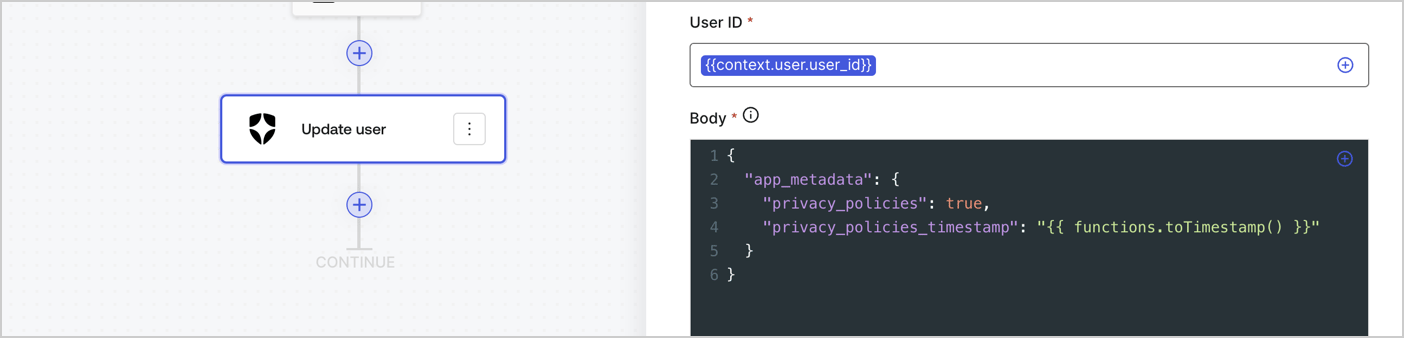
2. Below the StartAction, select the **+** icon to add an **Update user** action. Complete the fields below, then select **Save** to continue.

   * **Connection**: Select from the dropdown the Vault connection to your M2M application.

   * **User ID**: Enter `{{context.user.user_id}}`.

   * **Body**: Copy and paste the following code to update the app\_metadata with the privacy\_policies and privacy\_policies\_timestamp properties.

     ```text lines theme={null}
     {
       "app_metadata": {
         "privacy_policies": true,
         "privacy_policies_timestamp": "{{ functions.toTimestamp() }}"
       }
     }
     ```

   * Select **Save**.
3. Select **Publish** to save.
<Frame>
  <img src="https://mintcdn.com/docs-staging-fix-nav-assets/b22fJlr3CMI4eZ28/docs/images/cdy7uua7fh8z/CvMNIwWrOUwaFW4X3G28p/1fb70ae57a20749d9ffaaba8dc0b7e26/update-user-privacy.png?fit=max&auto=format&n=b22fJlr3CMI4eZ28&q=85&s=6d6d8e309a1d7ccb60e189b834c5d35c" alt="Dashboard > Actions > Forms > User case privacy policy code" data-og-width="1404" width="1404" data-og-height="338" height="338" data-path="docs/images/cdy7uua7fh8z/CvMNIwWrOUwaFW4X3G28p/1fb70ae57a20749d9ffaaba8dc0b7e26/update-user-privacy.png" data-optimize="true" data-opv="3" srcset="https://mintcdn.com/docs-staging-fix-nav-assets/b22fJlr3CMI4eZ28/docs/images/cdy7uua7fh8z/CvMNIwWrOUwaFW4X3G28p/1fb70ae57a20749d9ffaaba8dc0b7e26/update-user-privacy.png?w=280&fit=max&auto=format&n=b22fJlr3CMI4eZ28&q=85&s=74f1000b4991d93f8783db887073bf80 280w, https://mintcdn.com/docs-staging-fix-nav-assets/b22fJlr3CMI4eZ28/docs/images/cdy7uua7fh8z/CvMNIwWrOUwaFW4X3G28p/1fb70ae57a20749d9ffaaba8dc0b7e26/update-user-privacy.png?w=560&fit=max&auto=format&n=b22fJlr3CMI4eZ28&q=85&s=b5eccf1ba80fb1769a01d4a4ac7f4660 560w, https://mintcdn.com/docs-staging-fix-nav-assets/b22fJlr3CMI4eZ28/docs/images/cdy7uua7fh8z/CvMNIwWrOUwaFW4X3G28p/1fb70ae57a20749d9ffaaba8dc0b7e26/update-user-privacy.png?w=840&fit=max&auto=format&n=b22fJlr3CMI4eZ28&q=85&s=c05a03824a13aba8881cec954aec2a21 840w, https://mintcdn.com/docs-staging-fix-nav-assets/b22fJlr3CMI4eZ28/docs/images/cdy7uua7fh8z/CvMNIwWrOUwaFW4X3G28p/1fb70ae57a20749d9ffaaba8dc0b7e26/update-user-privacy.png?w=1100&fit=max&auto=format&n=b22fJlr3CMI4eZ28&q=85&s=045b6930ddfd64c1dcf2b85f7e929bd5 1100w, https://mintcdn.com/docs-staging-fix-nav-assets/b22fJlr3CMI4eZ28/docs/images/cdy7uua7fh8z/CvMNIwWrOUwaFW4X3G28p/1fb70ae57a20749d9ffaaba8dc0b7e26/update-user-privacy.png?w=1650&fit=max&auto=format&n=b22fJlr3CMI4eZ28&q=85&s=71bd7b0afd5b5eeb16349fa51f42cd0b 1650w, https://mintcdn.com/docs-staging-fix-nav-assets/b22fJlr3CMI4eZ28/docs/images/cdy7uua7fh8z/CvMNIwWrOUwaFW4X3G28p/1fb70ae57a20749d9ffaaba8dc0b7e26/update-user-privacy.png?w=2500&fit=max&auto=format&n=b22fJlr3CMI4eZ28&q=85&s=3e4b99efbca1ff7c8efd2f38ab5ea59e 2500w" />
</Frame>

<Callout icon="file-lines" color="#0EA5E9" iconType="regular">
  The flow **Update app\_metadata** adds a `privacy_policies true` value to the app`_metadata` object and also generates a timestamp with a [helper function.](/docs/customize/forms/variables)
</Callout>

## Retrieve the form render code

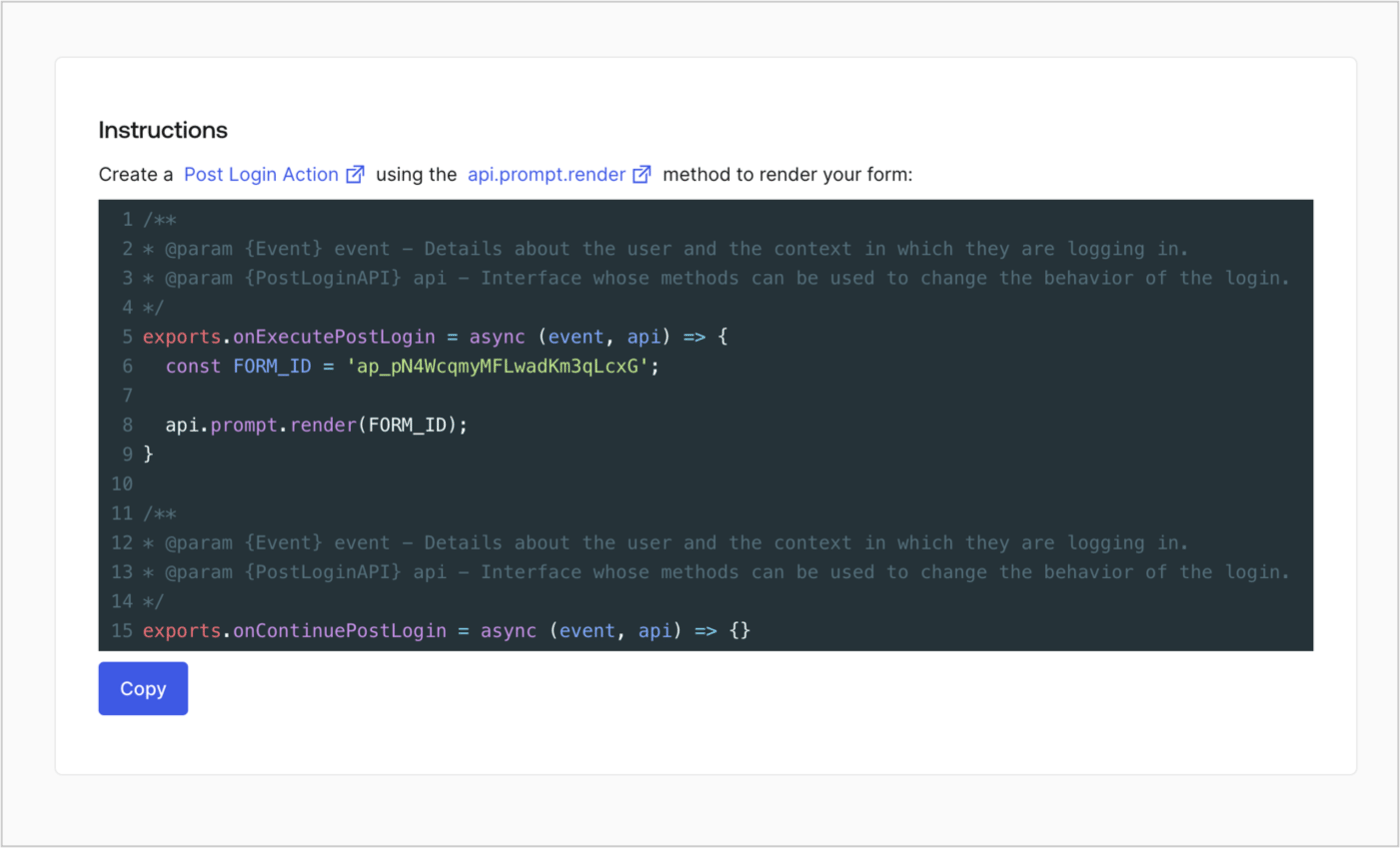
Retrieve your form render code to visually render the form with a custom Post Login Action by following these steps:

* From the Form editor, select **`<> Render`**.
* Select **Copy**.
<Frame>
  <img src="https://mintcdn.com/docs-staging-fix-nav-assets/hVL75mcyU7VRGl3T/docs/images/cdy7uua7fh8z/2EIUzc539sq9lwoTKbjoJv/496a864c0fc44a782c9cadca119dbfb0/embed.png?fit=max&auto=format&n=hVL75mcyU7VRGl3T&q=85&s=d1eb413ae8d6d8fbcd6d50bf900f73df" alt="Dashboard > Actions > Forms > Form > Embed" data-og-width="1400" width="1400" data-og-height="848" height="848" data-path="docs/images/cdy7uua7fh8z/2EIUzc539sq9lwoTKbjoJv/496a864c0fc44a782c9cadca119dbfb0/embed.png" data-optimize="true" data-opv="3" srcset="https://mintcdn.com/docs-staging-fix-nav-assets/hVL75mcyU7VRGl3T/docs/images/cdy7uua7fh8z/2EIUzc539sq9lwoTKbjoJv/496a864c0fc44a782c9cadca119dbfb0/embed.png?w=280&fit=max&auto=format&n=hVL75mcyU7VRGl3T&q=85&s=d0e6ba11df7bae261022a069e6b0f7b5 280w, https://mintcdn.com/docs-staging-fix-nav-assets/hVL75mcyU7VRGl3T/docs/images/cdy7uua7fh8z/2EIUzc539sq9lwoTKbjoJv/496a864c0fc44a782c9cadca119dbfb0/embed.png?w=560&fit=max&auto=format&n=hVL75mcyU7VRGl3T&q=85&s=64d815e41ba9e7c09f3c704f566ae84c 560w, https://mintcdn.com/docs-staging-fix-nav-assets/hVL75mcyU7VRGl3T/docs/images/cdy7uua7fh8z/2EIUzc539sq9lwoTKbjoJv/496a864c0fc44a782c9cadca119dbfb0/embed.png?w=840&fit=max&auto=format&n=hVL75mcyU7VRGl3T&q=85&s=b71a0eeb12781e4c9e7a98bbdcbf7f3f 840w, https://mintcdn.com/docs-staging-fix-nav-assets/hVL75mcyU7VRGl3T/docs/images/cdy7uua7fh8z/2EIUzc539sq9lwoTKbjoJv/496a864c0fc44a782c9cadca119dbfb0/embed.png?w=1100&fit=max&auto=format&n=hVL75mcyU7VRGl3T&q=85&s=6d6e532d44d9293ff5b0983c5b746ce8 1100w, https://mintcdn.com/docs-staging-fix-nav-assets/hVL75mcyU7VRGl3T/docs/images/cdy7uua7fh8z/2EIUzc539sq9lwoTKbjoJv/496a864c0fc44a782c9cadca119dbfb0/embed.png?w=1650&fit=max&auto=format&n=hVL75mcyU7VRGl3T&q=85&s=23c2a4de6f941b656378c430f406343d 1650w, https://mintcdn.com/docs-staging-fix-nav-assets/hVL75mcyU7VRGl3T/docs/images/cdy7uua7fh8z/2EIUzc539sq9lwoTKbjoJv/496a864c0fc44a782c9cadca119dbfb0/embed.png?w=2500&fit=max&auto=format&n=hVL75mcyU7VRGl3T&q=85&s=6570e80473aeb0eab5c94ae9d60f3ecd 2500w" />
</Frame>

## Create a Post Login Action

Create a post-login Action to render your form by following these steps:

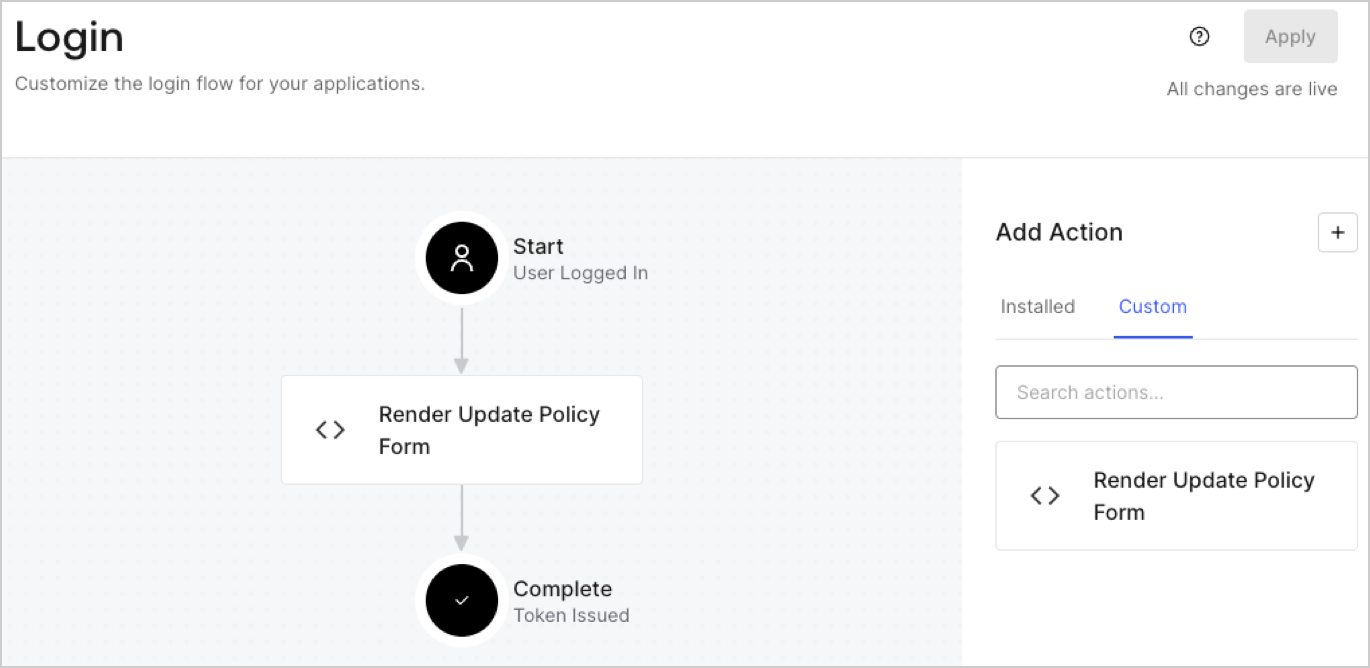
1. Navigate to **Auth0 Dashboard > Actions > Flows > Login.**
2. Select the **+** icon and Select **Build from scratch**:

   * **Name**: Enter `Render Update Policy Form`.
   * **Trigger**: Select `Login / Post Login`.
   * **Runtime**: Select the recommended version.
3. Select **Create**.

To configure the post-login Action:

1. Delete the existing code from the Code editor.
2. Paste the form render code into the Code editor.
3. Edit the code to define the conditional logic that will render the form.

   ```javascript lines theme={null}
   /**
   * @param {Event} event - Details about the user and the context in which they are logging in.
   * @param {PostLoginAPI} api - Interface whose methods can be used to change the behavior of the login.
   */
   exports.onExecutePostLogin = async (event, api) => {
     const FORM_ID = 'REPLACE_WITH_YOUR_FORM_ID';

     if (event.user.app_metadata.privacy_policies !== true) {
       api.prompt.render(FORM_ID);
     }
   }

   exports.onContinuePostLogin = async (event, api) => { }
   ```

   <Callout icon="file-lines" color="#0EA5E9" iconType="regular">
     The example code above will render the form when a user is missing the app metadata `privacy_policies` property.
   </Callout>
4. Select **Deploy.**
5. Drag and Drop the **Render Update Policy Form** Action to the **Login** flow.
   <Frame>
     <img src="https://mintcdn.com/docs-staging-fix-nav-assets/vKUZFyQN-yr2DhtA/docs/images/cdy7uua7fh8z/5TOwDgevZsBqd7yZynUYWU/41ca909dc3007aed4f40ff794a05efa5/postlogin.png?fit=max&auto=format&n=vKUZFyQN-yr2DhtA&q=85&s=7c04ee422f9b8842ca0d2933034969a3" alt="Dashboard > Forms > Use Case > Render update policy form login action" data-og-width="1370" width="1370" data-og-height="668" height="668" data-path="docs/images/cdy7uua7fh8z/5TOwDgevZsBqd7yZynUYWU/41ca909dc3007aed4f40ff794a05efa5/postlogin.png" data-optimize="true" data-opv="3" srcset="https://mintcdn.com/docs-staging-fix-nav-assets/vKUZFyQN-yr2DhtA/docs/images/cdy7uua7fh8z/5TOwDgevZsBqd7yZynUYWU/41ca909dc3007aed4f40ff794a05efa5/postlogin.png?w=280&fit=max&auto=format&n=vKUZFyQN-yr2DhtA&q=85&s=d3f251fe49b89cbbd411e1212c580d07 280w, https://mintcdn.com/docs-staging-fix-nav-assets/vKUZFyQN-yr2DhtA/docs/images/cdy7uua7fh8z/5TOwDgevZsBqd7yZynUYWU/41ca909dc3007aed4f40ff794a05efa5/postlogin.png?w=560&fit=max&auto=format&n=vKUZFyQN-yr2DhtA&q=85&s=15015e0a4b2046375c81f855fcf82c28 560w, https://mintcdn.com/docs-staging-fix-nav-assets/vKUZFyQN-yr2DhtA/docs/images/cdy7uua7fh8z/5TOwDgevZsBqd7yZynUYWU/41ca909dc3007aed4f40ff794a05efa5/postlogin.png?w=840&fit=max&auto=format&n=vKUZFyQN-yr2DhtA&q=85&s=70f0b870772139523570ac7a4a9bd747 840w, https://mintcdn.com/docs-staging-fix-nav-assets/vKUZFyQN-yr2DhtA/docs/images/cdy7uua7fh8z/5TOwDgevZsBqd7yZynUYWU/41ca909dc3007aed4f40ff794a05efa5/postlogin.png?w=1100&fit=max&auto=format&n=vKUZFyQN-yr2DhtA&q=85&s=c83cb6161d0e15d9c821f2935cc7023e 1100w, https://mintcdn.com/docs-staging-fix-nav-assets/vKUZFyQN-yr2DhtA/docs/images/cdy7uua7fh8z/5TOwDgevZsBqd7yZynUYWU/41ca909dc3007aed4f40ff794a05efa5/postlogin.png?w=1650&fit=max&auto=format&n=vKUZFyQN-yr2DhtA&q=85&s=3f8d3973787a1803e5cac820923a2b4f 1650w, https://mintcdn.com/docs-staging-fix-nav-assets/vKUZFyQN-yr2DhtA/docs/images/cdy7uua7fh8z/5TOwDgevZsBqd7yZynUYWU/41ca909dc3007aed4f40ff794a05efa5/postlogin.png?w=2500&fit=max&auto=format&n=vKUZFyQN-yr2DhtA&q=85&s=9d59d8e0b06faca4cd5ddab9c47f5419 2500w" />
   </Frame>
6. Select **Apply.**

### Test implementation

Test the implementation by following these steps:

1. Log in with an existing user whose app`_metadata` attribute `privacy_policies` does not have a value.
2. The post-login Action in the Login flow will render the form and prompt for acceptance.
3. Select **Auth0 Dashboard > User Management > Users,** locate the user and verify that the `app_metadata` attribute `privacy_policies` contains a `true` value and a timestamp.
